

Seeing “VAC was unable to verify your game session” in Counter-Strike 2 can be alarming, especially just before a competitive match. It is essential to distinguish a session verification problem from Steam Support's separate “Disconnected by VAC: You cannot play on secure servers” and “Secure connection failed / No Steam logon” messages. A genuine VAC ban is a different account enforcement status and does not follow automatically from an ordinary verification error. This guide follows Valve's current Steam Support recommendations: low-risk restarts and file validation first, careful background-software and network checks second, and service repair only where relevant. Never use VAC bypass utilities, alter Windows kernel protections to imitate a fix, or assume all CS2 players are experiencing a live outage.
1. Identify the message before choosing a fix
CS2 players commonly describe a verification rejection as VAC was unable to verify your game session, while Valve's first-party support divides Disconnected by VAC: You cannot play on secure servers from Secure connection failed / No Steam logon. They can share a Steam or software conflict but are not identical diagnoses. Save the exact wording and whether the error is only on one server or all VAC-secured games. Do not assume the anti-cheat deliberately punished you. Only the actual VAC ban/account status, backed by Steam's separate enforcement documentation, establishes a ban.
2. VAC verification error is not the same as a VAC ban
Valve describes VAC as a system detecting recognized cheating software on protected servers. A real VAC ban has account-level consequences and is generally permanent; Steam Support cannot simply overturn bans on request, though wrongly issued bans can be removed automatically. In contrast, an unable to verify session or Disconnected by VAC error can be triggered by legitimate technical interference or broken connectivity. Rebooting Steam, checking files or repairing the Steam service addresses technical errors, not actual bans. Never trust a website promising to remove a VAC ban for money or asking for your Steam Guard codes.
3. Restart Counter-Strike 2, Steam and Windows in order
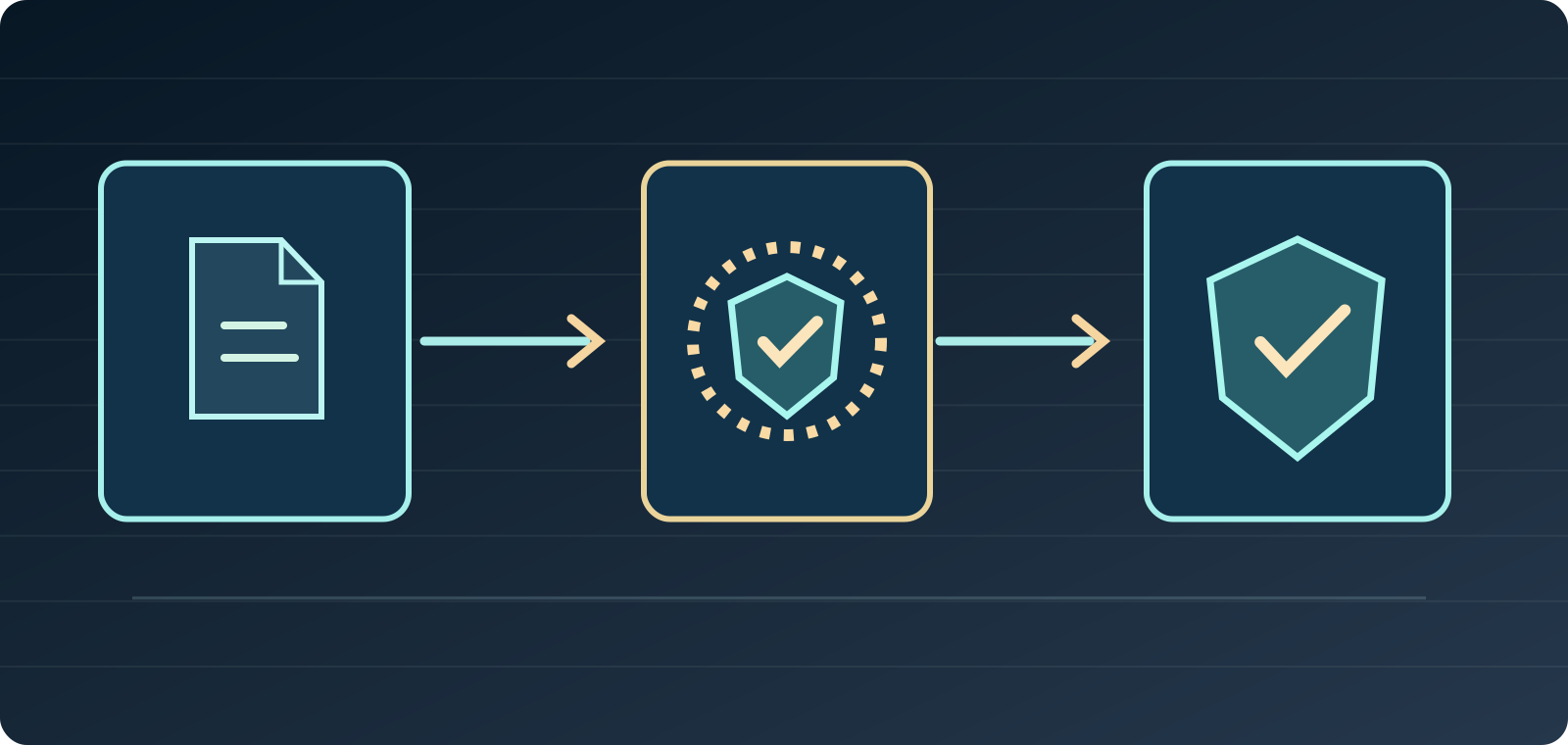
Exit the CS2 match and close the game. From Steam's menu choose Exit, not merely minimizing the client to the system tray. Restart Windows normally to clear lingering processes and file locks, then sign in to the legitimate Steam client and launch CS2 from the Library. Valve lists restarting the PC among its basic approaches to VAC-related secure-server errors. Make one retest to see whether the message returns. You need not reinstall CS2 or Windows at this early stage, and should not terminate unfamiliar security services in Task Manager.
4. Verify CS2 installed files using the current Steam menu
Open **Steam → Library → Counter-Strike 2 → gear icon or right-click → Properties → Installed Files → Verify integrity of game files. Steam compares the local installation with its expected game data and downloads replacements where necessary. The process can take several minutes. Valve notes that one or more configuration files sometimes fail verification normally** because local settings differ: that alone is not proof of hacking or a broken installation. Do not run multiple integrity checks or other disk-intensive tasks simultaneously. After verification, restart CS2 and attempt one ordinary protected-server join.
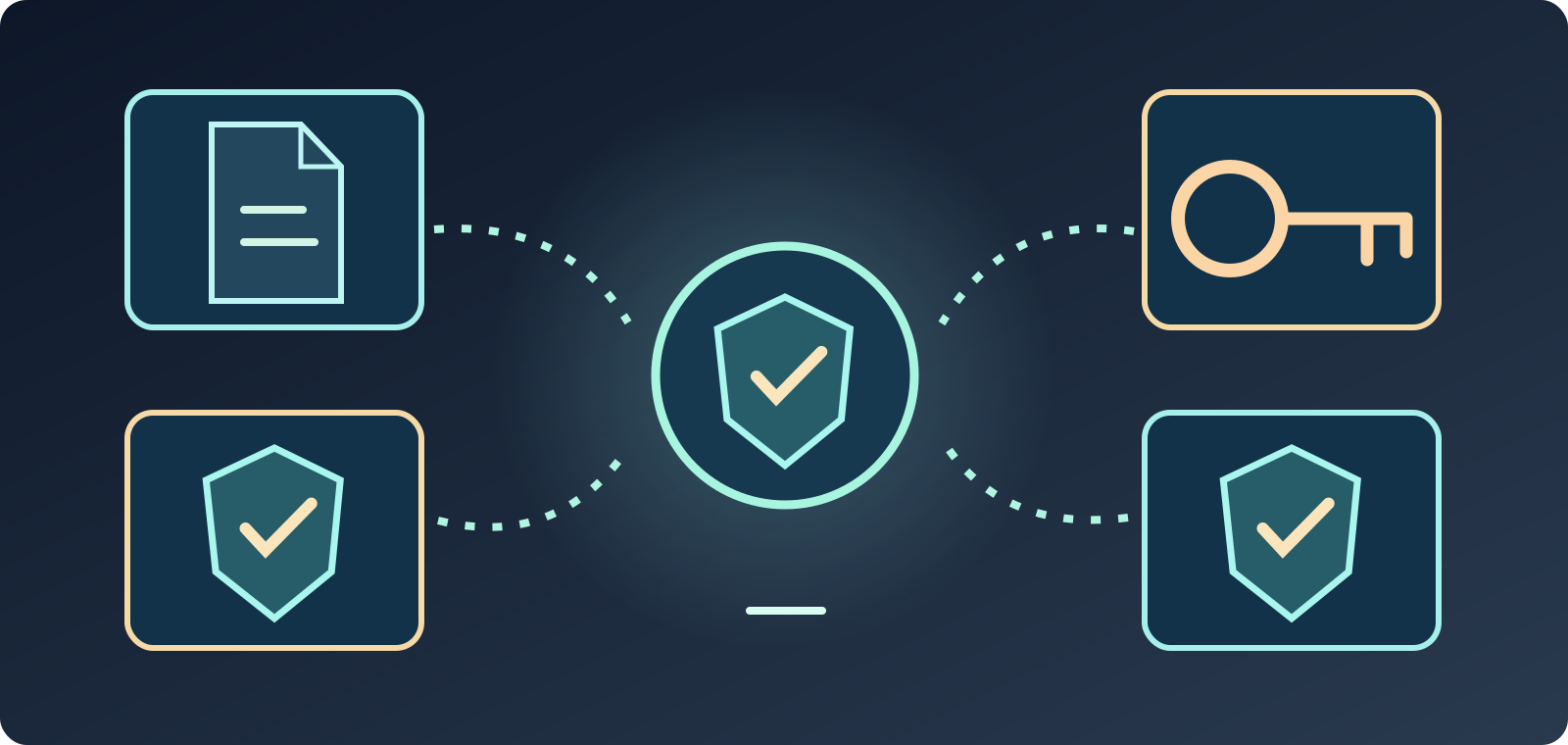
- Session check error: retry safe Steam restart and file verification.
- Disconnected by VAC: inspect interference and the official Valve Steam Service guidance.
- Secure connection failed: investigate Steam session and network/security permissions.
- VAC ban: separate actual account enforcement—not fixed by reinstalling.
5. Distinguish VAC disconnect from secure-connection failures
The Valve page Disconnected by VAC specifically addresses third-party programs that interfere with Steam or game processes; the Secure connection failed / No Steam logon page also highlights network, firewalls, security software and anti-cheat conflicts. A connection error can occur even when your game files are correct. Check whether the Steam client itself is online and your account session remains valid. If Steam Community and other internet services work, it narrows the investigation but does not prove all VAC connections are healthy. Avoid public VPNs, alternative Steam DLLs or unknown authentication 'fixers'.
6. Review overlays, injectors and game-file modification tools
Valve lists examples of interfering applications in its VAC disconnect guidance, including DLL injectors, skin changers, file modifiers, Steam idlers and Cheat Engine. Running tools that alter CS2 textures, executable files or the game process creates additional risk. Shut down unneeded programs lawfully and restore altered game files using Steam verification. Steam's own overlay is documented separately and can be disabled for one game at Properties → General → Enable the Steam Overlay while in-game for a reversible comparison if it appears connected to the failure. Do not disable Steam Guard, Windows Defender or the whole firewall to let suspicious software operate.
7. Repair Steam Service only for the relevant official error
If Valve's dedicated Disconnected by VAC article matches the exact message and simple tests fail, Valve documents a Windows Steam Service repair procedure. It invokes the genuine SteamService.exe in your actual Steam installation, typically `"C:\Program Files (x86)\Steam\bin\SteamService.exe" /repair`, after Steam is fully closed. This procedure requires administrator rights and must be performed only on a PC you are authorized to administer; the path may differ. Prefer checking the current Valve Help article directly before running a privileged command. Do not download 'SteamService fix' EXE files from third-party websites, and do not confuse a service-repair command with an anti-cheat bypass.
8. Don't copy advanced bcdedit changes from random videos
Valve's historical VAC troubleshooting also discusses restoring certain Windows boot security settings to their normal defaults, but command-line bcdedit operations affect low-level Windows behavior. They should not be the first reaction to a CS2 session mismatch. If an official advanced step appears relevant because Windows was previously customized, consult Valve and Microsoft guidance and have an authorized administrator inspect the system. Never turn off Secure Boot, kernel-integrity verification, Data Execution Prevention or other security protections to make VAC 'pass'. A random command sequence can create a larger security and startup problem.
9. Examine Steam connection, Wi-Fi and local security permissions
When Steam displays Secure connection failed rather than a simple file mismatch, Valve's support identifies networking, firewall policies and conflicting security applications among possible causes. Confirm Steam is in online mode, perform a normal reconnect, pause heavy background uploads, and compare stable Ethernet with Wi-Fi where possible. If a legitimate security application is blocking Steam, use the application's documented, narrow trusted-program rule or contact the network administrator. Do not open every router port, permanently disable the firewall, or assume DNS changes will defeat a real VAC ban.
- Step 1: Exit CS2 and Steam completely; restart Windows.
- Step 2: Steam Library → CS2 → Properties → Installed Files → Verify.
- Step 3: Close game-modifying tools; compare a clean launch.
- Step 4: Only if warranted, use official Windows Steam Service help.
10. Steam download corruption is a separate issue
If verification tries to reacquire files but Steam reports a download/update failure, consult Valve's Update & Installation Issues support page. It describes download cache clearing and Settings → Storage → Repair Folder where library permissions are broken. Those procedures concern downloading and installing files and are not automatic solutions to every VAC warning. Follow the current client menu and ensure game data has finished updating before testing CS2. An incomplete game update can cause startup trouble independently of anti-cheat verification. Back up personal configuration files before advanced storage changes.
11. Avoid deleting Steam or CS2 before the basic tests are complete
Uninstalling and reinstalling a large game costs time and can lose locally stored settings without fixing a Steam service conflict or a network access problem. Valve's general startup guides recommend restarting, verifying installed files and checking interfering applications first. The official overlay guide even notes that running the official Steam installer over the existing installation can restore client components, whereas uninstalling Steam can delete installed game content. Don't delete the `steamapps` library, CS2 configs, or Steam login data based on an unverified community script. Use official repair options only after diagnosing the failure.
12. Consider whether a Steam or CS2 service event is ongoing
An error beginning after a Steam or CS2 update could affect more than one player, but a wave of posts is not conclusive proof of a worldwide VAC outage. Check current notices in the Steam client, official game news and Steam Support, and note whether unrelated friends on other networks can join the same protected matchmaking queues. If a service-side problem is confirmed, repeatedly changing Windows boot security and router permissions cannot repair Valve's servers. Wait for the relevant official resolution while preserving your present setup. This article does not assert that a global VAC incident is active on October 8, 2026.
13. When an actual VAC ban is shown
If Steam genuinely displays an account VAC ban, use the official Valve Anti-Cheat (VAC) System documentation to learn what it means. Valve says such bans are generally permanent and support cannot remove them by request, although a wrongly issued enforcement action can be reversed automatically. Steam's official article distinguishes VAC bans from separate game-server administrative bans. File integrity checks, Windows reinstallation, network tunneling or buying a new account are not legitimate methods to reverse VAC penalties. Protect the account, avoid cheats or unauthorized injectors, and never reveal a Steam Guard code to anyone claiming they can restore access.
- Don't: install VAC bypasses or third-party 'repair' executables.
- Don't: disable firewall, Secure Boot or Defender wholesale.
- Do: distinguish exact error from a real ban; preserve account security.
- Support: exact wording, verification result and recent changes.
14. What to send Steam Support if verification still fails
Write down the literal error message, Steam account region only where relevant (never credentials), CS2 version/build, Windows version, Steam client update status, whether files verified, whether the issue occurs on all protected servers, any legitimate game-overlay/modification tools, Steam Service repair outcome if actually performed, and connection type. Record the timestamp and whether the problem started after an update. Take screenshots without Steam Guard codes, email, private chats or payment information. Submit the evidence through the genuine Steam Support flow. This helps distinguish a technical VAC disconnect from a game update, network fault or genuine enforcement status.
Safe diagnosis order: exact message → full Steam/PC restart → Steam Installed Files verification → background-tool review → connection and trusted security-rule check → privileged Steam Service repair only when Valve's specific VAC disconnect page applies → Steam Support. A real VAC ban is separate from a technical session-validation failure and cannot be 'repaired' with ordinary game-file checks.
Valve first-party references (checked October 8, 2026): https://help.steampowered.com/en/faqs/view/22C0-03D0-AE4B-04E8 ; https://help.steampowered.com/en/faqs/view/0C48-FCBD-DA71-93EB ; https://help.steampowered.com/en/faqs/view/571A-97DA-70E9-FF74 ; https://help.steampowered.com/en/faqs/view/6C09-ED6F-3A21-D2AB ; https://help.steampowered.com/en/faqs/view/21F5-8D5D-0141-7A5E ; https://help.steampowered.com/en/faqs/view/3978-072C-18DF-FBF9 ; https://help.steampowered.com/en/faqs/view/5814-D9A3-BE42-62DF. No active global VAC service incident is asserted.